How to Install an Icon Theme on Windows 11 with Windhawk (No System File Editing!)
May 19, 2026
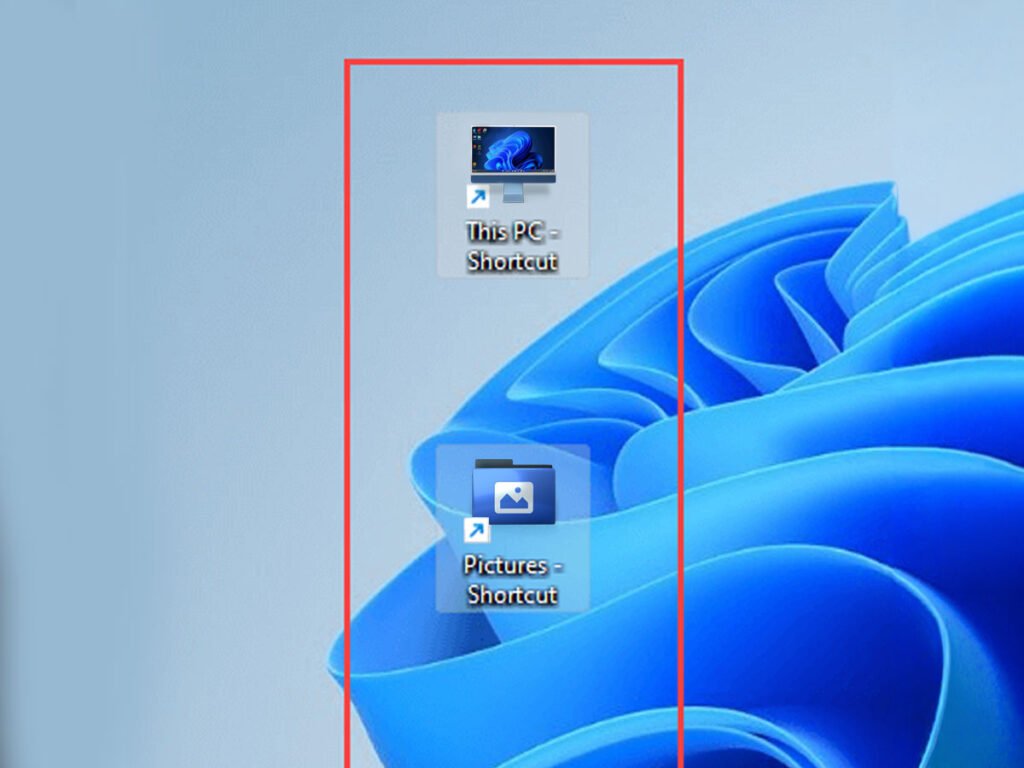
Hey there! 👋 So you just grabbed some awesome new icons from Cryo64 or OhMyIcons and applied them to your desktop — looking great, right? But maybe now the spacing between icons feels a little off. Too cramped? Too spread out? No worries — we've got you covered!
Believe it or not, Windows 11 (and Windows 10) doesn't include a visible setting to adjust icon spacing. It's one of those hidden tweaks that Microsoft kept under the hood. But there are two easy ways to change it, and we'll walk you through both. Let's go! 🚀
⚙️ Method 1: Edit the Registry Manually
This method gives you full control by editing two hidden values in the Windows Registry. Don't be intimidated — just follow each step carefully and you'll be fine!
- Right-click the Start button on the taskbar and choose Run.
- Type
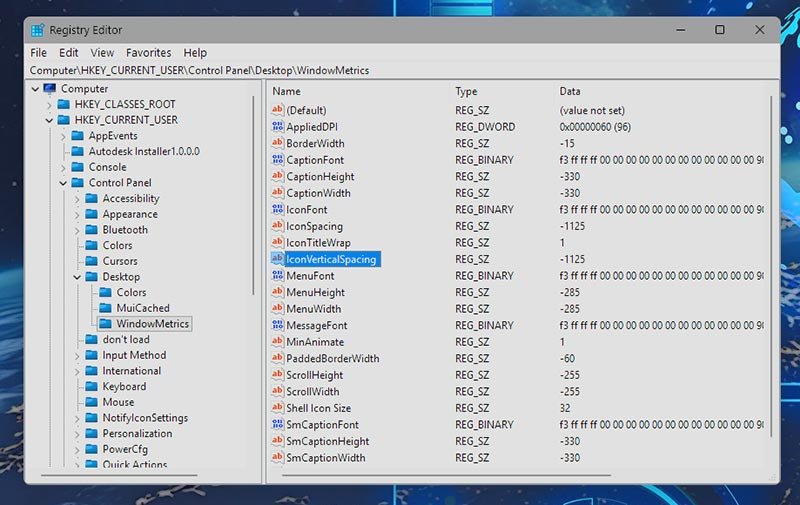
regeditand click OK to open the Registry Editor. - Navigate to the following path (you can copy and paste it into the address bar at the top):
Computer\HKEY_CURRENT_USER\Control Panel\Desktop\WindowMetrics - Click on the WindowMetrics key in the left panel.
- Double-click on IconSpacing — this controls the horizontal spacing between icons.
- The default value is -1125 (which equals about 75 pixels). Replace it with a new value:
— Use a higher negative number (like-1500) to add more space.
— Use a lower negative number (like-900) to reduce the space.
⚠️ Don't go too extreme — icon labels may overlap or icons may disappear if values are too high or too low. - Click OK.
- Now double-click IconVerticalSpacing — this controls the vertical spacing.
- Enter the same value you used for IconSpacing if you want uniform spacing, or a different one for a custom layout.
- Click OK and close the Registry Editor.
- Restart your PC to apply the changes.
✅ To restore the default spacing, just go back and set both values back to -1125, then restart again.
🛠️ Method 2: Use Winaero Tweaker (Easier & Visual!)
If you'd rather use a friendly visual tool with sliders instead of editing the registry manually, Winaero Tweaker is a fantastic free option. Here's how:
- Go to the Winaero Tweaker download page and download the app.
- Unzip the downloaded file (right-click → Extract All).
- Run the installer and follow the setup steps. All default options are fine.
- Check "Run Winaero Tweaker" at the end and click Finish.
- In Winaero Tweaker, expand the Advanced Appearance Settings category.
- Click on Icons.
- Drag the Horizontal Spacing slider left or right to adjust horizontal spacing.
- Drag the Vertical Spacing slider to adjust vertical spacing.
- Click Apply Changes, then choose Sign Out Now to restart and apply.
✅ To reset to defaults, just click "Reset this page to default values" inside the Icons section.
💡 Bonus tip: Winaero Tweaker also lets you change the icon font — style, size, bold, italic — so your desktop can look even more polished alongside your new icon theme!
🎨 Make Your Desktop Truly Yours!
Now that your icon spacing is perfectly dialed in, why not go all the way and give your entire desktop a makeover? At Cryo64 and Oh My Icons, you'll find stunning modern icon themes, wallpapers, cursors, screensavers, and tons more to personalize your Windows (or Mac!) experience. Your desktop deserves to look as good as it feels to use. 😎
Got questions or ran into any issues? Write us at support@ cryo64.com — we're happy to help!