How to Install an Icon Theme on Windows 11 with Windhawk (No System File Editing!)
May 19, 2026
Aesthetic 4K Wallpapers for Every Mood
July 29, 2026
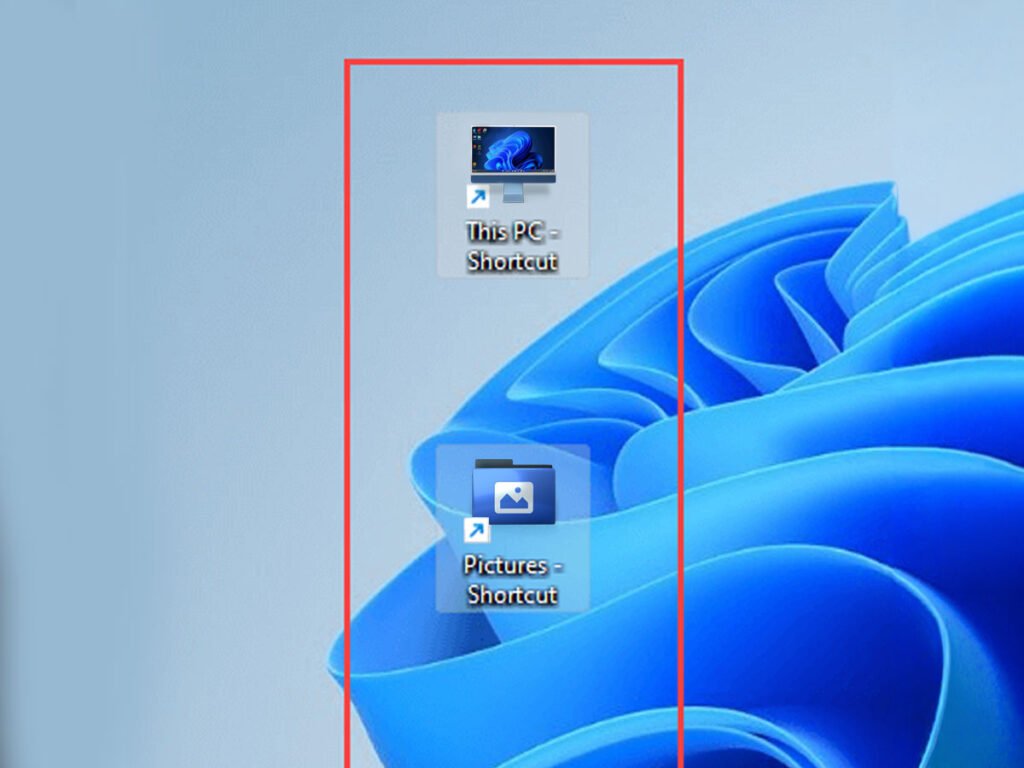
Fix Desktop Icon Spacing in Windows 11 and 10
Did you just install a custom icon theme from Cryo64 or Oh My Icons? Great choice! But now your desktop icons look too cramped — or too far apart. Unfortunately, Windows 11 and Windows 10 don't have a simple way to fix this. Don't worry, though — we'll show you how.
In this guide, you'll learn two easy methods to change desktop icon spacing. First, we cover the Registry Editor. Then, we walk through a free tool called Winaero Tweaker. Pick the one that feels right. Let's go! 🚀
In This Guide
- Why Icon Spacing Matters
- Method 1 — Registry Editor
- Method 2 — Winaero Tweaker (Easier!)
- Recommended Spacing Values
- Take Your Desktop Even Further
Why Icon Spacing Matters for Custom Themes
It Changes the Whole Look
When you use a quality icon pack, every detail counts. In fact, icon spacing affects how your desktop looks and feels. Tight spacing looks modern and clean. On the other hand, wide spacing gives each icon room to stand out.
Windows Removed the Setting
Windows 7 had a spacing slider in Display Settings. However, Windows 10 and 11 removed it. As a result, you need to dig a little deeper. Still, don't worry — it's easy to do.
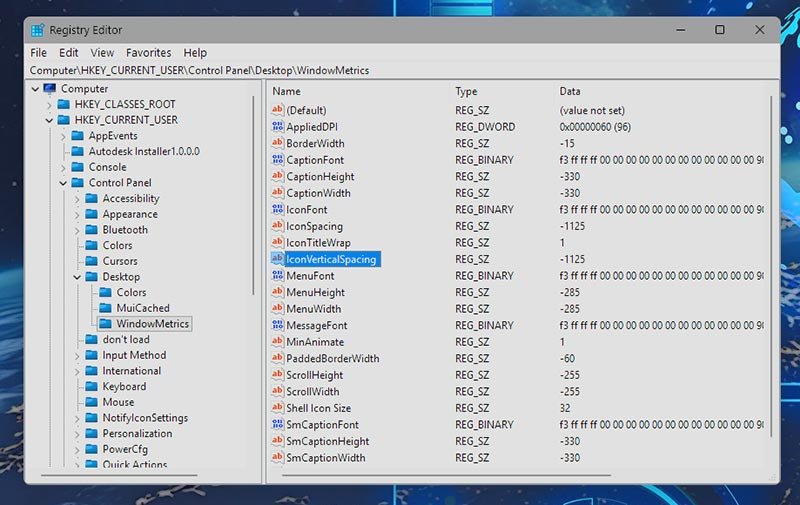
Method 1 — Change Icon Spacing via Registry Editor
This method works on both Windows 11 and Windows 10. You'll edit two values in the Windows Registry. It sounds technical, but we'll walk you through every step.
Step 1 — Open the Registry Editor
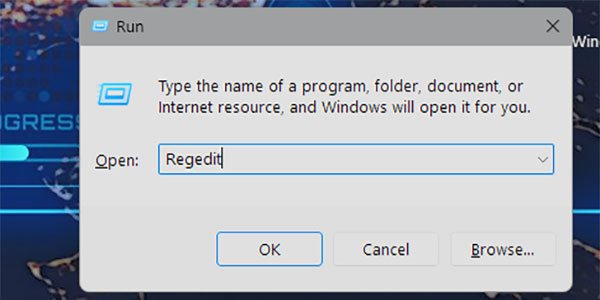
Press Win + R to open the Run dialog. Next, type regedit and press Enter. Finally, click Yes if Windows asks for permission.
Step 2 — Navigate to the WindowMetrics Key
Copy and paste this path into the Registry Editor address bar at the top:
HKEY_CURRENT_USER\Control Panel\Desktop\WindowMetricsThen press Enter. You'll land on the right folder right away.
Step 3 — Edit IconSpacing (Horizontal)
Find IconSpacing on the right panel and double-click it. This value controls the horizontal distance between icons.
The default is -1125 (about 75 pixels). To change it, use these rules:
- More negative = more spacing — e.g.,
-1500gives wider gaps - Less negative = tighter spacing — e.g.,
-900pulls icons closer - Valid range:
-480(tightest) to-2730(widest)
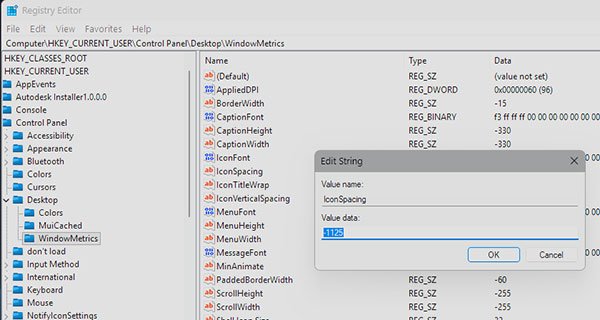
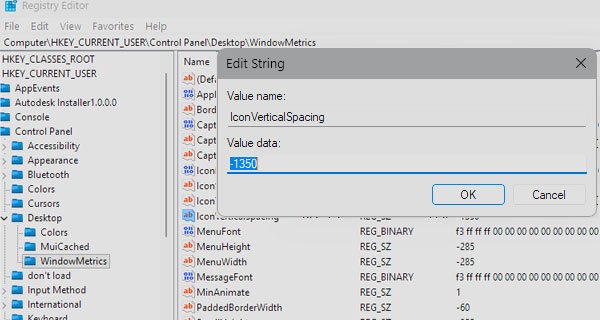
Step 4 — Edit IconVerticalSpacing (Vertical)
Next, find IconVerticalSpacing and double-click it. This controls the vertical distance between icon rows. Similarly, use the same value system as before. You can also match it to your horizontal value, or set it differently for a custom layout.
Step 5 — Restart Your Computer
Registry changes need a full restart to take effect. Simply signing out is not enough. Therefore, restart your PC and check the result!
Method 2 — Change Icon Spacing with Winaero Tweaker (Easier!)
Not comfortable with the Registry? No problem. Winaero Tweaker is a free and trusted Windows tool. In addition, it lets you set icon spacing with a slider — no registry editing needed.
Step 1 — Download and Install Winaero Tweaker
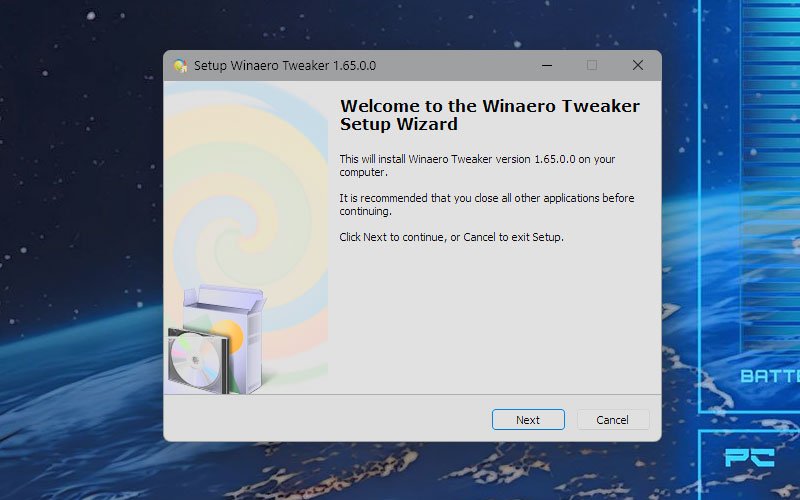
First, go to the Winaero Tweaker website. Then download and install it like any normal Windows app.
Step 2 — Open the Icon Spacing Section
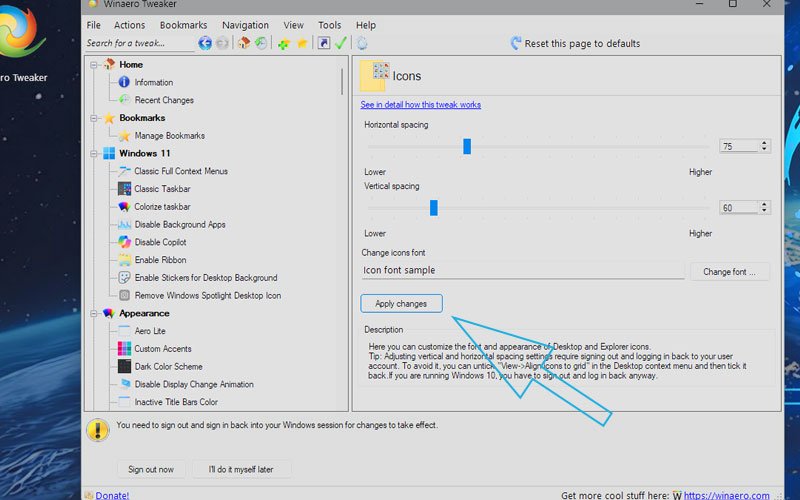
Launch Winaero Tweaker. Then look in the left panel for Desktop → Desktop Icon Size and Spacing. Click on it to open the settings.
Step 3 — Adjust the Sliders
You'll see two sliders. One controls horizontal spacing, and the other handles vertical spacing. Drag right to add more space. To reduce it, drag left instead.
Values are shown in pixels. The default is 75px for both. For larger icon packs (256×256 or bigger), however, try starting at 90–110px.
Step 4 — Apply and Restart
Click Apply Changes and then restart Windows. Changes take effect after a full reboot.
Recommended Spacing Values for Custom Icon Themes
Quick Reference Table
Not sure where to start? Use this table as a guide:
| Icon Size | Spacing (px) | Registry Value |
|---|---|---|
| 32×32 (small) | 60–75px | -900 to -1125 |
| 48×48 (default) | 75–90px | -1125 to -1350 |
| 64×64 (medium) | 90–110px | -1350 to -1650 |
| 128×128 or larger | 120–150px | -1800 to -2250 |
These are starting points. Try different values until it looks right!
Take Your Desktop Even Further
Get a Premium Icon Theme
Icon spacing is just the start. In fact, a great icon pack makes the biggest change. Find hundreds of icon sets at Cryo64.com and OhMyIcons.com. Both shops also sell wallpapers, cursors, and screensavers for Windows and Mac.
Add a Matching Wallpaper
Great icons need a great wallpaper too. Keep an eye on our upcoming Genesis HUD wallpaper. It's a sci-fi design coming soon, only at Cryo64!
Find More Desktop Ideas
Need some ideas? For example, browse cool setups at WinCustomize and DeviantArt Windows Customization. The community posts amazing desktops every day.
Try a Custom Cursor
Finally, finish the look with a matching cursor. Both Cryo64 and OhMyIcons have cursor packs to match their icon themes.

Which Method Did You Choose?
You're All Set!
Both methods work great. The Registry Editor gives you full control. Winaero Tweaker, on the other hand, is fast and easy. Either way, your icons will look just right.
Got questions? Drop a comment below — we'd love to hear from you!
Also, if you haven't visited Cryo64.com or OhMyIcons.com yet, go check them out. Your desktop is waiting. 😎
NOW THAT YOUR ICONS ARE PERFECTLY SPACED...
Why settle for the default Windows icons? Give your freshly-organized desktop a complete visual upgrade with a premium 3D icon theme from Cryo64 — hundreds of icons designed to replace your system icons in one click.