
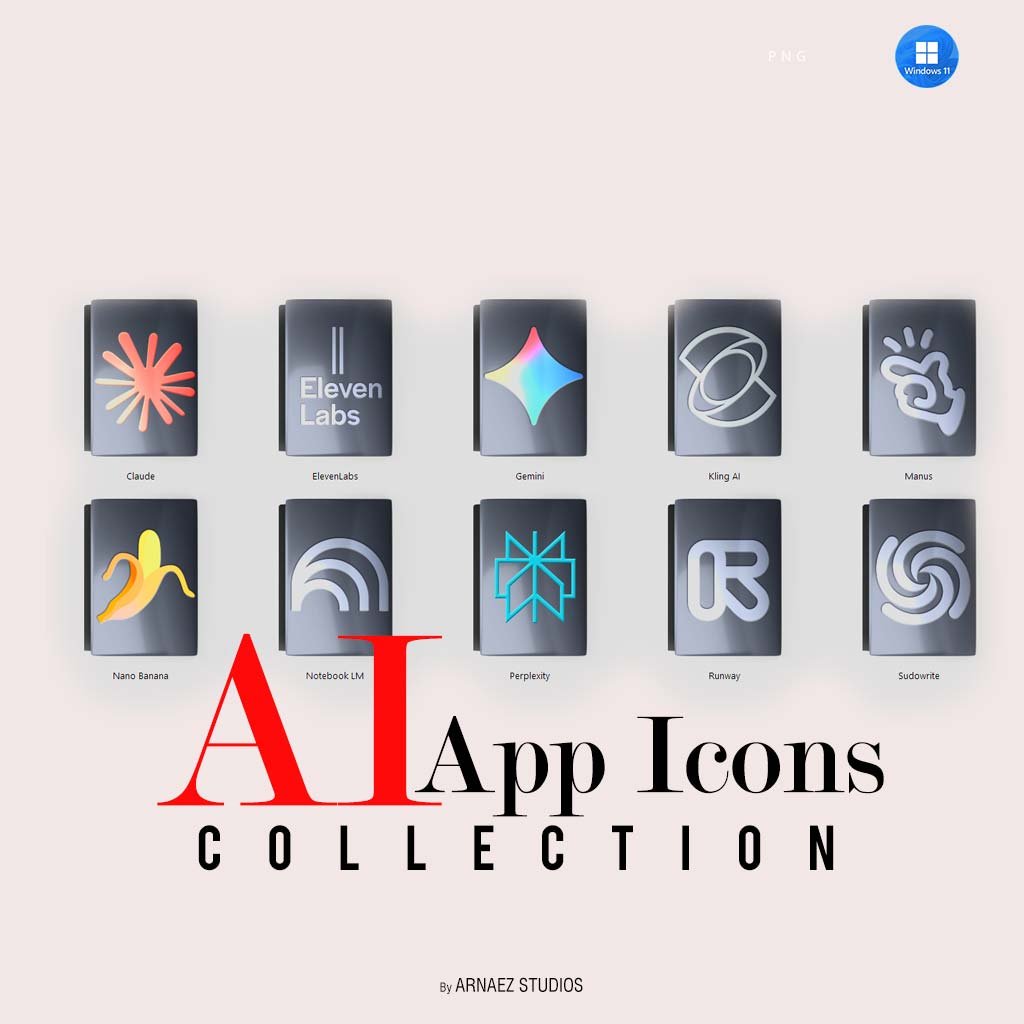
AI App Icons Collection — Genesis 11 Style
AI App Icons for Windows 11 — Genesis 11 Style
Your AI tools deserve better than generic icons. The AI App Icons Collection by Cryo64 brings 10 of the most popular AI applications to life with a bold, futuristic 3D design — perfectly matched to the Genesis 11 icon universe.
In fact, these icons were created specifically for designers, developers, and AI enthusiasts who use these tools every day and want their desktop to reflect that. Finally, your shortcuts can look as cutting-edge as the apps they launch.
What’s Included
10 Premium AI App Icons
This pack includes custom icons for the following AI applications:
- Claude — Anthropic’s AI assistant
- ElevenLabs — AI voice generation
- Gemini — Google’s AI model
- Kling AI — AI video generation
- Manus — AI agent platform
- Nano Banana — AI productivity tool
- Notebook LM — Google’s AI notebook
- Perplexity — AI-powered search
- Runway — AI creative studio
- Sudowrite — AI writing assistant
File Format
All icons are delivered as high-quality PNG files, ready to apply directly to your Windows 11 shortcuts. No special software is needed.
How to Apply Custom Icons on Windows 11
Step 1 — Download and Extract
First, download your ZIP file after purchase. Then extract it to a folder on your PC.
Step 2 — Right-Click Your Shortcut
Next, right-click the app shortcut on your desktop. Then select Properties → Shortcut tab → Change Icon.
Step 3 — Apply the Icon
Finally, click Browse, navigate to your extracted folder, and select the PNG icon. Click OK to apply. Your shortcut now looks amazing!
Part of the Genesis 11 Universe
These icons were designed to match the full Genesis 11 Complete Experience collection. However, they also work as a standalone pack for anyone who wants to upgrade their AI app shortcuts. For the best result, pair them with the Genesis 11 Icon Theme and the Genesis HUD Wallpaper.
Also, check out more premium desktop customization products at Cryo64.com and OhMyIcons.com. Trusted by fans in over 80 countries worldwide.
Only logged in customers who have purchased this product may leave a review.
By D. Arnaez, Arnaez Studios LLC — Miami, FL

Reviews
There are no reviews yet